Reports
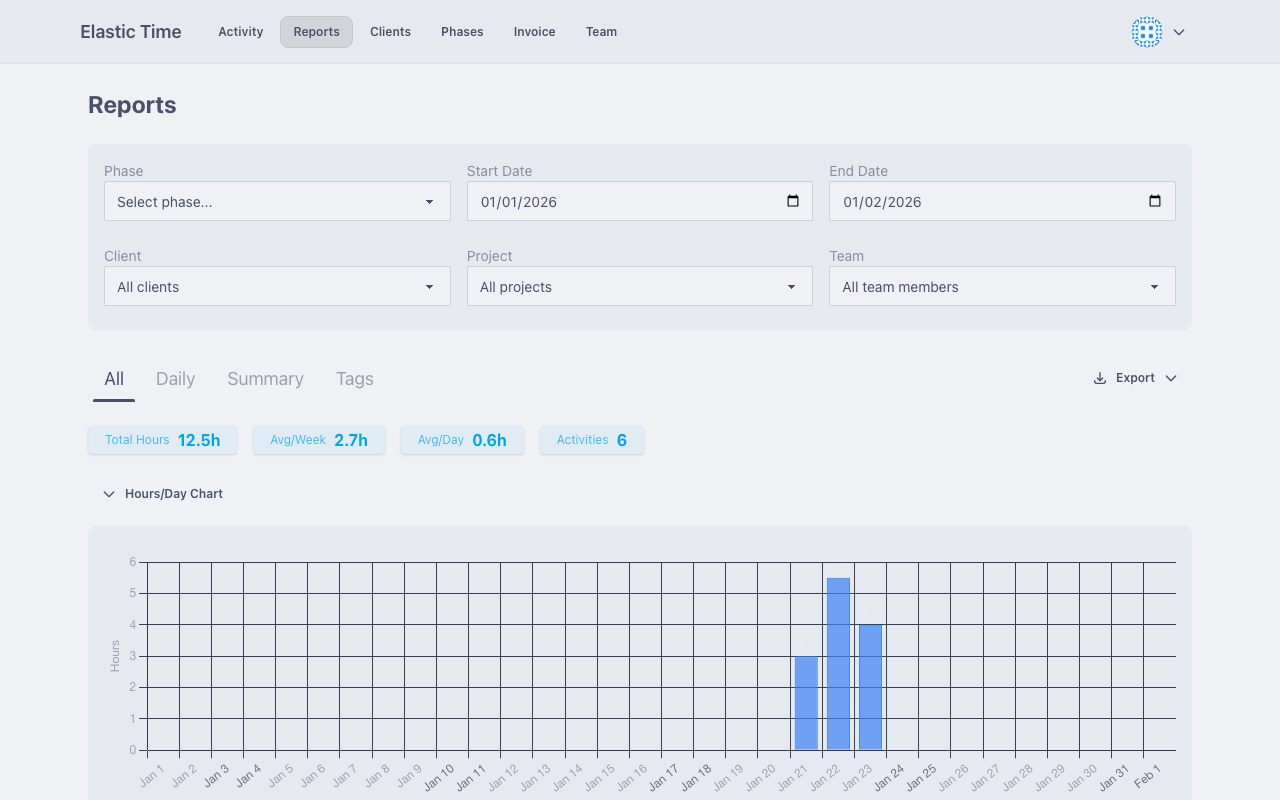
The Reports page provides powerful tools for analyzing your tracked time. View your data in multiple formats, filter by various criteria, and export for invoicing or analysis.
Report Views
Detailed View
Shows individual activities with full details:
- Date and time range
- Description
- Project and client
- Tags and notes
- Duration
Best for: Reviewing specific work, auditing time entries.
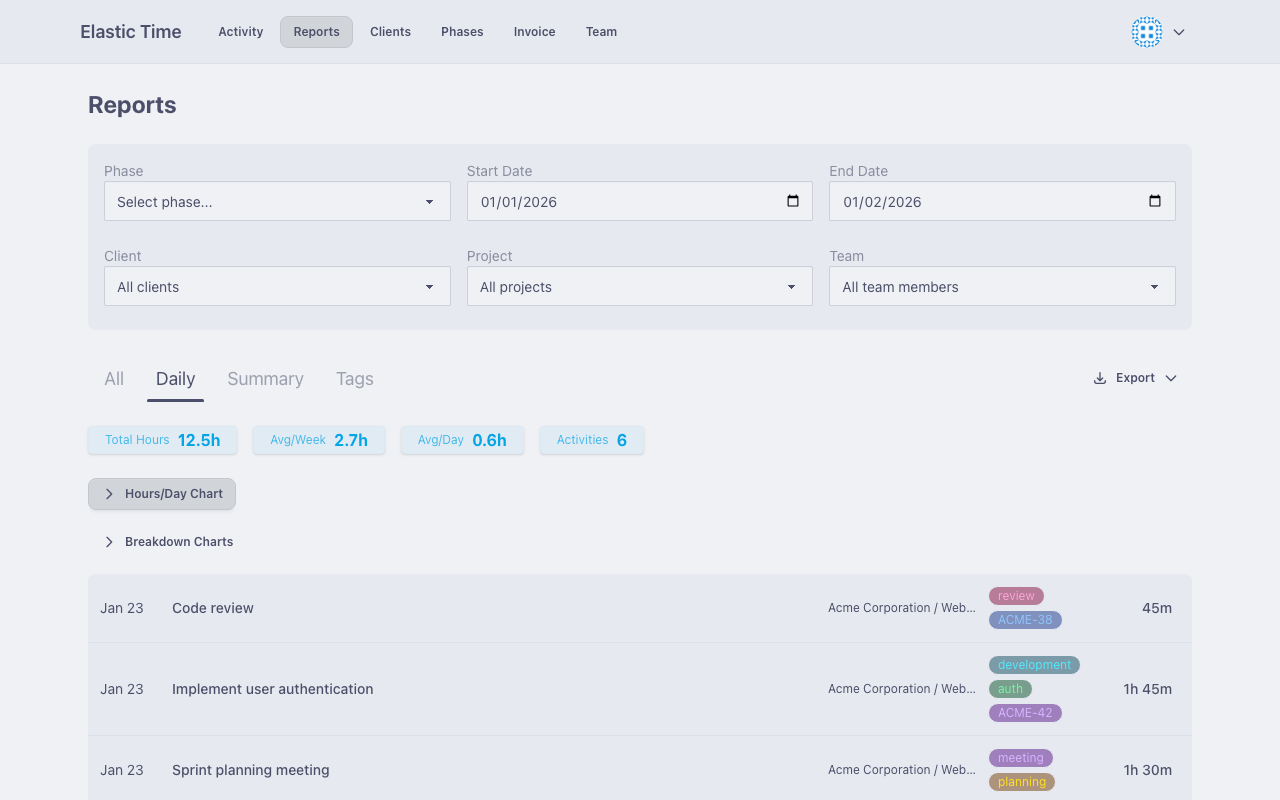
Daily View
Aggregates activities by day:
- Date
- Total hours per day
- Activity count
Best for: Daily time tracking, identifying patterns, quick overviews.
Summary View
Shows aggregated totals:
- Total hours
- Breakdown by project or client
- Billing totals (shown on all report pages when rate is set)
Best for: High-level reporting, billing summaries, project status.
Tags View
Breaks down time by tag:
- Each unique tag
- Total hours per tag
- Percentage of total time
Best for: Seeing which activities took the most time.
Categories View
Shows hours per project broken down by tag category:
- Each project as a card with total hours
- Category rows with hours, percentage, and a visual bar
- Hours split proportionally when an activity has tags in multiple categories
When no client with tag categories is selected, all hours appear as “Uncategorized” per project. Select a client with tag categorization enabled to see the full category breakdown.
Best for: Understanding how time distributes across projects and work types (e.g., Development, Meetings, QA).
Filtering
Date Range
Filter activities by date range:
- Set the start date
- Set the end date
- Results update automatically
Client & Project
Filter by specific clients or projects:
- Select a client to see only their work
- Further filter by project within that client
- Combine with date range for precise filtering
Phase Selection
Select a phase to automatically apply its filters:
- Date range from the phase
- Client from the phase’s contract
- Project from the phase (if set)
- Billing rate for calculations
This is the fastest way to prepare data for invoicing.
Time Summaries
The reports page displays time statistics:
- Total Hours - Sum of all filtered activities
- Average per Day - Hours divided by working days
- Average per Week - Hours divided by weeks in range
An interactive chart visualizes your time distribution over the selected period.
Billing Calculations
When a phase with a billing rate is selected (or filtering by a contract):
- Hours are multiplied by the billing rate
- Total billable amount is shown
- Per-activity billing appears in detailed view
- Export includes billing columns
Export Formats
CSV
Download a spreadsheet-compatible file with:
- All activity fields
- Calculated durations
- Billing amounts (when applicable)
Useful for: Spreadsheet analysis, custom reporting, data backup.
Generate a formatted PDF report:
- Professional layout
- Summary statistics
- Activity details
- Company branding
Useful for: Client reports, records, printing.
HTML
Download an HTML file with:
- Simple report layout
- Clickable tag links (when ticket URL is configured)
- Easy sharing via email
Useful for: Email reports, web viewing, archive.
AI-Friendly Formats
Export in formats optimized for AI assistants:
Markdown
Organized by project and tag for easy parsing by AI tools. Use this to:
- Generate executive summaries
- Create status updates
HTML for AI
Similar to markdown but with HTML structure. Better for AI tools that prefer HTML input.
Jira Exports
Warning: Always check scripts before you run them. If you are unsure about this feature, we recommend that you don’t use it.
Tempo CSV
Export a CSV compatible with Jira Tempo:
- Aggregates time by tag (issue key) per day
- Compatible with Tempo Timesheets import
- Works with Jira Server/Data Center
Jira Worklogs Script
Copy a JavaScript snippet that imports time entries as Jira worklogs:
- Copy the script to clipboard
- Open your Jira instance in a browser
- Open browser developer console (F12)
- Paste and run the script
The script uses your existing Jira session for authentication - no API tokens needed.
Jira Comments Script
Similar to worklogs, but imports activity notes as Jira comments:
- Only includes activities with notes
- Creates one comment per activity
- Useful for documenting work performed
Best Practices
Pre-Invoice Check
Before generating invoices:
- Select the phase
- Review the detailed view
- Check for missing or incorrect entries
- Verify the billing total
- Then generate the invoice