Invoices
Elastic Time generates professional PDF invoices directly from your tracked time. Select phases, customize the details, and download ready-to-send invoices.
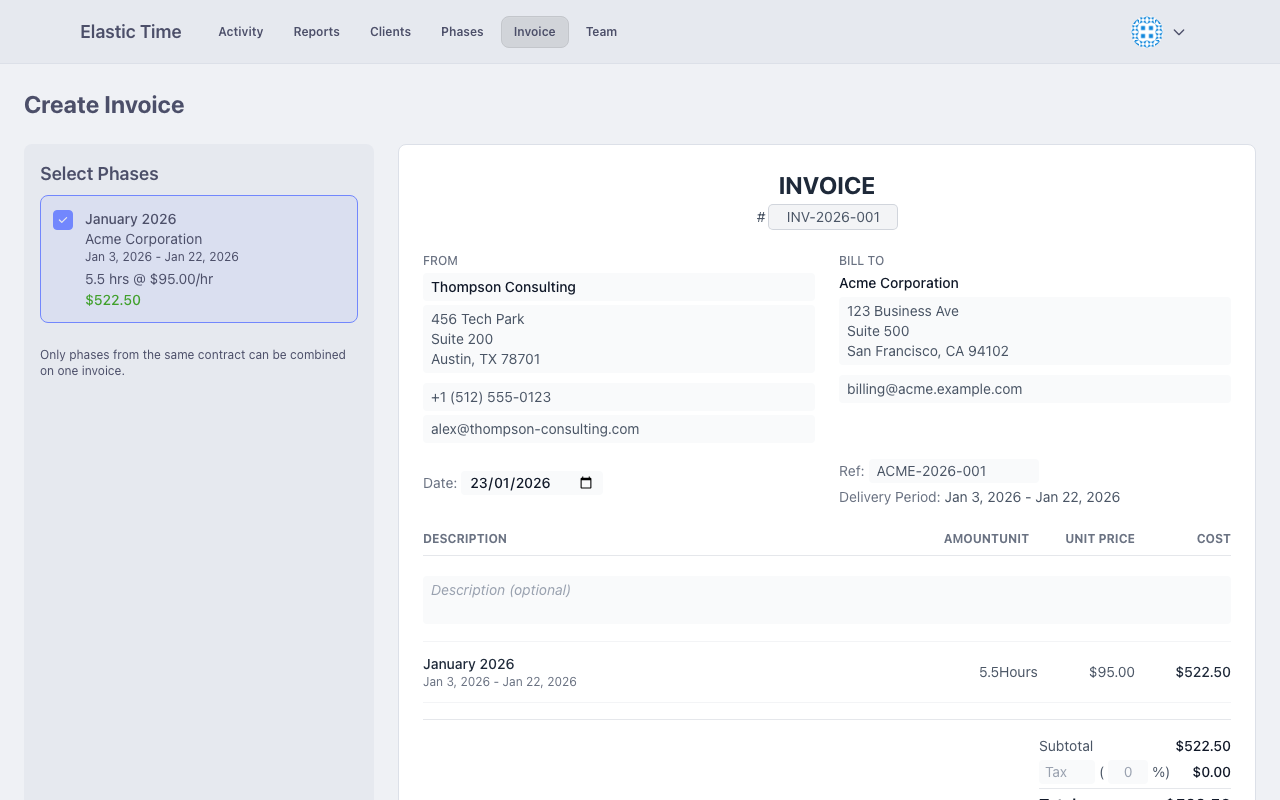
Generating an Invoice
Step 1: Select Phases
- Go to Invoice
- Select one or more phases from the dropdown
- All phases must be from the same contract
When you select phases:
- The date range is determined from the phases
- The billing rate comes from the phase (or contract)
- Activities within those phases are included
Step 2: Review the Preview
The invoice preview shows:
- Your company information
- Client billing details
- Line items (phases or categories)
- Hours and amounts
- Tax calculations
- Total due
Step 3: Customize
All fields in the preview are editable:
- Click any field to edit
- Changes auto-save
- Customize for this specific invoice
Step 4: Download PDF
Click “Download PDF” to generate the final invoice. The PDF is ready to send to your client.
Invoice Structure
Header
Contains your company information:
- Company name
- Address
- Phone number
Configure these in Preferences.
Client Information
Shows the client’s billing details:
- Client/company name
- Billing address
- Billing email
Configure per client in their detail page.
Invoice Details
- Invoice Number - Auto-generated, editable
- Invoice Date - Defaults to today, editable
Line Items
By default, each phase is a line item showing:
- Phase name
- Hours worked
- Rate
- Amount
Tag Category Breakdown
When tag categorization is enabled for a client:
- Activities are grouped by tag category
- Each category becomes a line item
- Shows the category’s invoice label
- Displays hours and amount per category
See Clients & Projects for setup.
Totals
The totals section shows:
- Subtotal (before tax)
- Tax amount (if configured)
- Total due
Footer
Customizable footer text for payment terms, bank details, and other notes. Use lines with 2+ dashes to create horizontal rules. Configure the default footer in Preferences.
Persistent Changes
Some changes persist for future invoices:
- Company information saves to Preferences
- Client information saves to the client record
Invoice-specific edits (like invoice number) apply only to that invoice.
Tax Settings
Tax Label
The label shown next to tax amount. Examples:
- “VAT” (UK, EU)
- “GST” (Canada, Australia)
- “Sales Tax” (US)
Tax Rate
The percentage applied to the subtotal:
- Set your default rate in Preferences
- Override per invoice if needed
- Leave blank for tax-exempt invoices
Multi-Phase Invoices
Select multiple phases to combine them into one invoice:
- All phases must be from the same contract
- Each phase becomes a line item
- Hours and amounts are summed
- Useful for billing multiple periods at once
Best Practices
Before Generating
- Review the phase in Reports
- Verify all activities are properly logged
- Check the billing total matches expectations
- Confirm client billing details are current
Invoice Numbering
Use consistent invoice numbers:
- Sequential numbers (001, 002, 003)
- Date-based (2024-001, 2024-002)
- Client-prefixed (ACME-001, ACME-002)
Record Keeping
After downloading:
- Save a copy for your records
- Note the invoice in your accounting system
- Track payment status separately