Activity Tracking
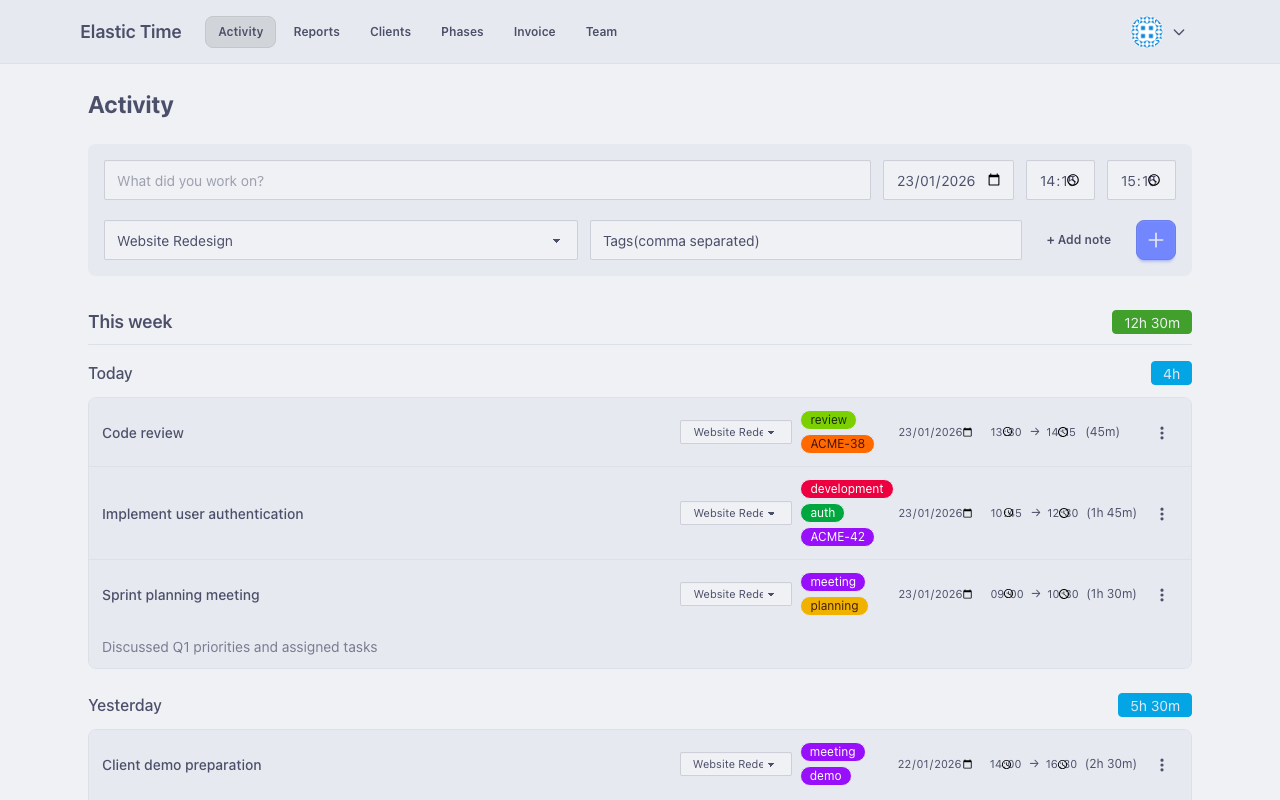
The Activity page is where you log and manage your time entries. Each activity represents a unit of work with a description, time range, and optional project and tags.
Creating Activities
Basic Entry
To log a new activity:
- Enter a description of your work
- Set the start time and end time
- Optionally select a project and add tags
- Add personal notes to document anything significant
Smart Defaults
Elastic Time helps you log time faster with intelligent defaults:
- Start time defaults to the end time of your most recent activity today, or 09:00 if it’s your first entry
- Project defaults to the same project as your most recent activity
- End time quick-pick - Focusing the end time field shows suggested times in 30-minute steps (up to 3 hours after the start time), each with the resulting duration; click one to select it, or just type a time
- Overnight support - End times before the start time are automatically interpreted as the next day
Autocomplete
As you type in the description field, Elastic Time suggests matching descriptions from your recent activities. When you select a suggestion:
- The description is filled in
- The associated project is automatically selected
- Tags from that activity are copied over
This makes logging recurring tasks very quick.
Projects
Activities can be linked to projects for better organization. The project dropdown shows:
- Projects grouped by client
- Projects from clients where you’re a team member
- A clear option to remove the project assignment
Linking activities to projects enables:
- Filtering in reports by client or project
- Accurate billing when using phases
- Better organization of your work history
Tags
Tags help categorize your activities. Common uses include:
- Issue tracking - Use ticket numbers (e.g.,
PROJ-123) as tags - Task types - Tag work as
meeting,development,review, etc. - Billing categories - Group work for invoice categorization
Tag Autocomplete
Tags autocomplete from your unique tags used in the last 6 months. Start typing to see suggestions.
Tags Select the Project
When you finish entering a tag in the new activity form, Elastic Time looks up the last activity where that tag was used. If it was linked to a different project than the one currently selected, the project switches automatically and a toast explains what happened — with an Undo button in case the switch wasn’t what you wanted. The same undoable toast appears when changing the start date auto-adjusts the start time.
Tag Linking
If your client has a Ticket URL prefix configured, tags in HTML exports will become clickable links to your issue tracker (e.g., Jira, GitHub Issues).
Personal Notes
Each activity has an optional personal notes field for additional context. Personal notes are useful for:
- Recording decisions made during meetings
- Documenting what was accomplished
- Adding context
Personal notes are included in the AI export, making them useful when using AI tools to generate reports or summaries.
Status Indicators
Activities display visual badges to highlight missing information:
- Red badge - Missing end time (activity still in progress)
- Yellow badge - Missing project assignment
- Blue badge - Missing tags
Clicking a badge focuses the relevant field for quick editing.
Inline Editing
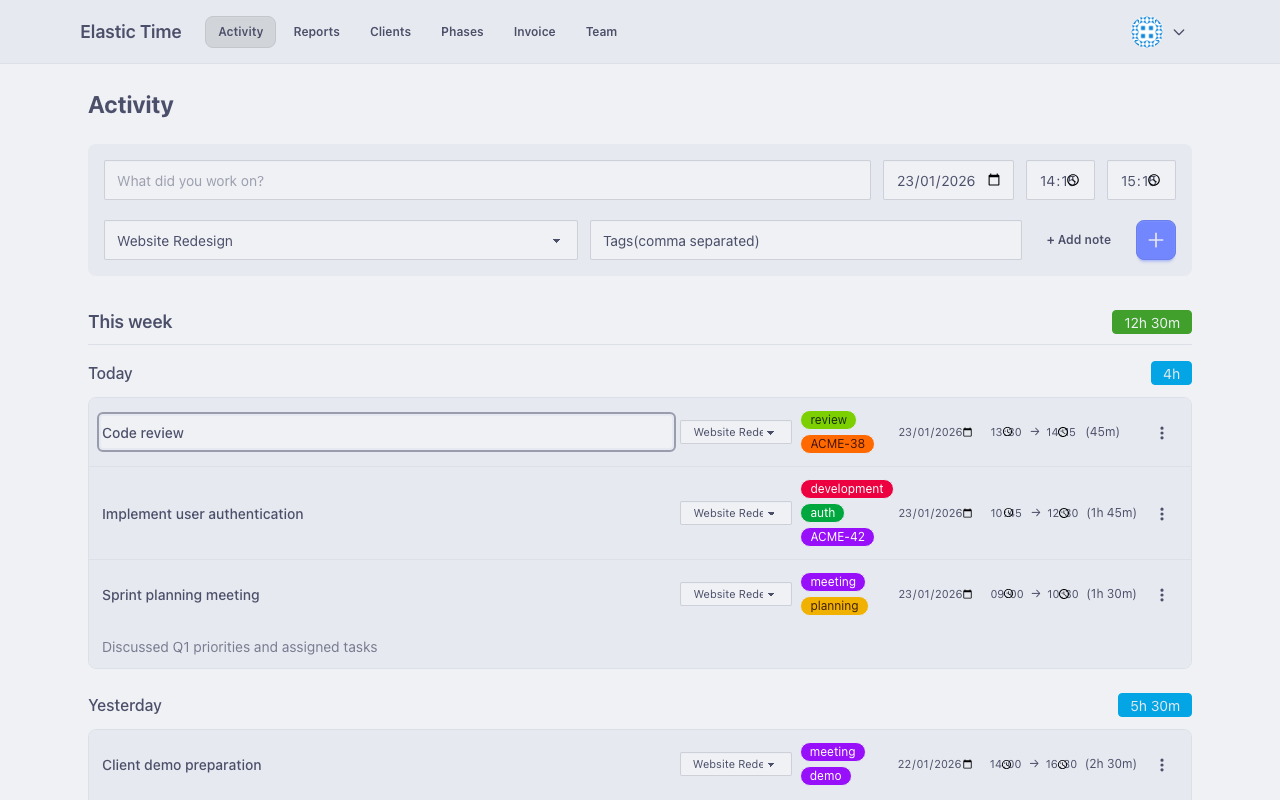
All activity fields support inline editing. Click any field to edit it and make your changes.
Activity History
The Activity page initially shows your last 6 weeks of activities, starting from the beginning of the week (Sunday).
To see older entries, click Load More at the bottom of the list. Each click loads an additional 4 weeks of history. If there is a gap in your history — weeks without any activities — Load More skips straight to your next batch of older activities, so you never have to click through empty periods.
When all of your activities are loaded, the Load More button disappears.
Activity Locking
Activities can be locked to prevent editing or deletion. This is useful for:
- Preserving records after invoicing
- Ensuring approved timesheets aren’t modified
- Maintaining audit trails
To lock activities:
- Go to Reports
- Select a phase (the phase end date must be today or earlier)
- Click the Lock button
- Confirm to lock all unlocked activities in the selected period
Once locked, activities cannot be edited or deleted.
Deleting Activities
To delete an activity, click the delete button at the end of the row.